TL;DR
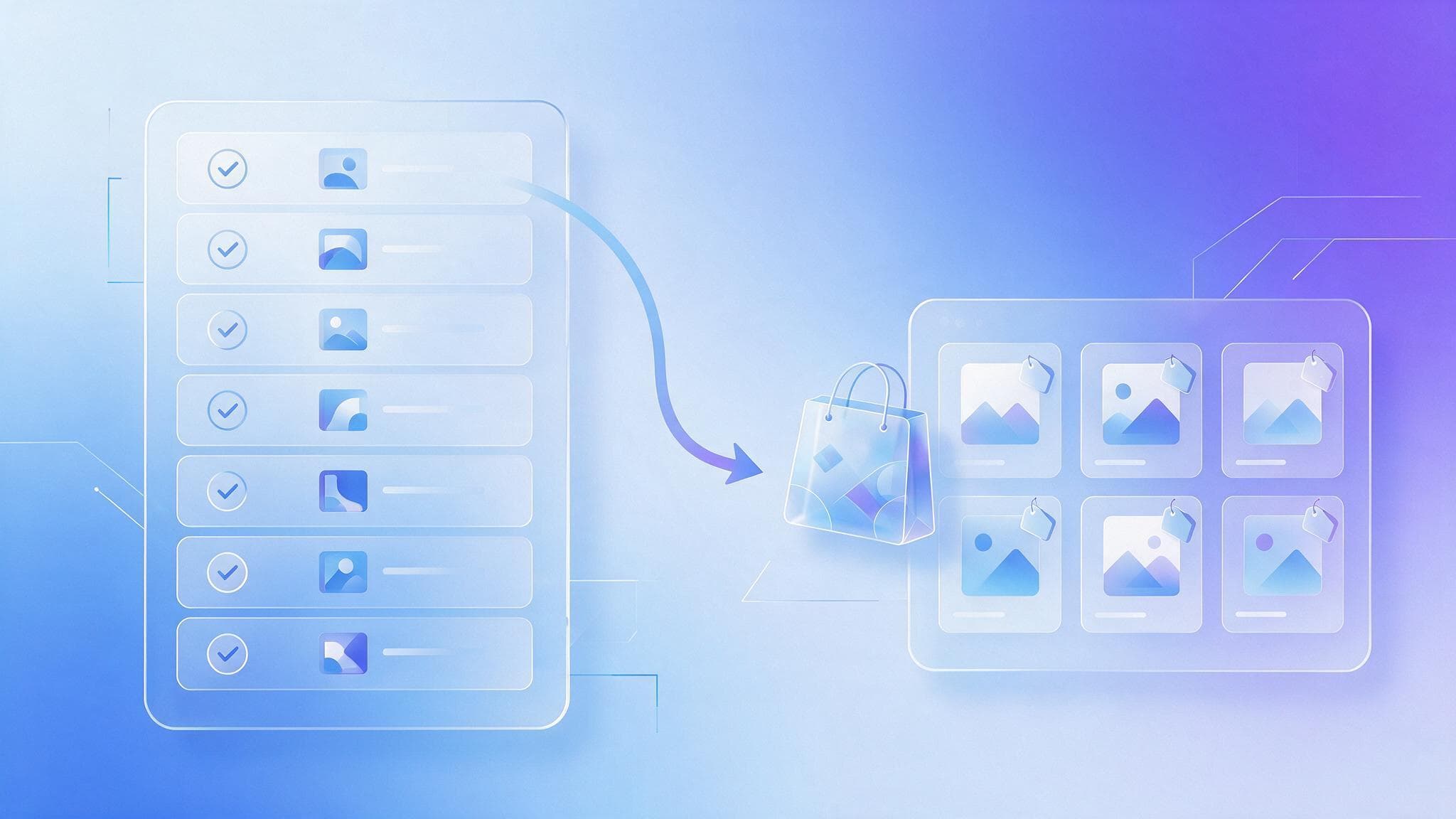
- Google Merchant Center stores product data such as titles, prices, images, stock, shipping rates and return policy, while Google Ads holds budgets and bidding; the two must be linked before product ads can run.
- Opening a Merchant Center account is free and requires verifying and claiming your own website, and approved products are also eligible for free listings on the Shopping tab.
- The required feed fields for general products are id, title, description, link, image_link, availability, price, brand, gtin or mpn, and condition.
- Shopping ads use no keywords: Google matches queries by reading the feed, so title wording does the job keywords would do in a search campaign.
- Sellers who trade only on marketplaces such as Shopee or Lazada cannot use Merchant Center, because it requires a domain you own and can claim, and marketplace storefront links do not satisfy the claiming rules.
Google Merchant Center is the system you use to send your product data to Google so those products can appear as image cards with prices in search results, the Shopping tab, and other Google surfaces. It is a product data warehouse, not an advertising tool. The tool that spends money is Google Ads. Merchant Center tells Google what each item is called, what it costs, whether it is in stock, and what it looks like.
This guide is written for people starting out. It covers the difference between the two systems, how to sign up and verify your website, what fields a product feed needs, how to fix disapproved products, and the question Thai online sellers ask most often: do you still need this if you already sell on Shopee or Lazada.
What Merchant Center is and how it differs from Google Ads
The two systems do different jobs and have to be linked before you can run product ads. Merchant Center stores product data, checks whether it complies with policy, and holds store-level settings such as shipping rates and return policy. Google Ads is where you set budgets and bidding strategy, choose where ads run, and read reports on which products earned the clicks and sales.
If the product data in Merchant Center is wrong or disapproved, no amount of budget in Google Ads will make that product appear. This is what confuses beginners most, because the campaign shows as active while getting no impressions at all. The cause is almost always on the product data side, not the advertising side.
| Task | Done in Merchant Center | Done in Google Ads |
|---|---|---|
| Submit titles, prices, images and stock | Yes | No |
| Verify and claim the website | Yes | No |
| Set shipping rates and return policy | Yes | No |
| Set budget and bidding strategy | No | Yes |
| Report on clicks, revenue and ROAS | Partly | Yes |
How to sign up and verify your website
You can open an account with an ordinary Google account and there is no fee to open one. What you need ready is a website that can genuinely sell, with everything Google requires: product detail pages with a clear price, a checkout process that can be completed, store contact details, a return and refund policy, and shipping information. Sites missing those pages usually fail the first review.
Once the business details are filled in, the next job is verifying and claiming the website, which are two separate things. Verification proves you have access to the site. Claiming ties that domain to your Merchant Center account. There are several verification methods and you only need one.
- Link a Google Search Console account that already has the domain verified. This is quickest if SEO work has been done before.
- Place an HTML tag in the head of the home page.
- Upload the HTML file Google provides to the root of the domain.
- Verify through Google Tag Manager or by adding a record at your domain provider.
One thing Thai stores get caught on is domain mismatch. If the live site uses www but the account was set up without it, claiming can fail. And if the site has no https certificate, particularly on pages that take payment details, products get disapproved account-wide. Check both before spending time on the feed.
What fields a product feed needs
A product feed is the file or connection that sends your full product list into Merchant Center. One row is one product, one column is one attribute. For general products, Google requires these fields.
- id, a unique product code that must not keep changing, because performance history is tied to it
- title, the product name, with brand, model and main attributes near the front
- description, matching the information on the page, with no exaggerated promotional copy
- link, pointing straight to the product detail page rather than a category page
- image_link, the main image, which must show the actual product with no text or promotional frame over it
- availability, the stock status such as in stock, out of stock, or preorder
- price, with currency, matching the price on the page exactly
- brand, required for branded products
- gtin or mpn, the global trade item number or manufacturer part number, required where the manufacturer assigns one
- condition, whether the item is new, refurbished, or used
Beyond the required fields there are optional ones that affect sales a great deal: sale_price for discounts, product_type for your own store category structure, google_product_category for Google's standard taxonomy, and custom_label for your own tags so you can split products when setting up campaigns, for example separating high-margin items from stock you are clearing.
There are several ways to submit a merchant center product feed. Upload a file yourself, schedule Google to fetch a file from a URL, connect a Google Sheet directly, or use the API for stores with large catalogues and frequently changing prices. Frequency matters more than method. A store whose stock moves fast should update at least daily, or you pay for clicks on items already sold.
What Google Shopping Ads are and where they appear
Google Shopping Ads appear as product cards with an image, price and store name, instead of the three lines of text a standard search ad uses. They most often sit at the top of the results page, in the Shopping tab, and in some cases on Google partner surfaces.
The biggest difference from search ads is that you do not choose keywords. Google matches queries to your products by reading the feed. That means the quality of your titles and descriptions does the job keywords would do. A title reading "t-shirt model A01" matches far worse than "ABC crew neck cotton t-shirt black size L model A01", because the words customers actually type are in the second one.
What you control on the ads side is bidding, how products are grouped, and negative keywords to block irrelevant queries. Which product surfaces for which query is decided mostly by the feed. There is more on campaign structure on the Google Shopping service page.
Something many people miss is that Merchant Center is not only for paid ads. Approved products are also eligible to appear in free listings on the Shopping tab, so a store not yet ready to buy ads still has a reason to keep the feed clean from the start.
How to fix a disapproved product
A product disapproved in merchant center means that item failed review and will not show until it is fixed. Open the products section of the account and look at the items needing attention. The system lists the reason and how many products share the same problem. The common causes fall into a few groups.
- Price or stock status in the feed does not match the page. This is the most common one, and it usually happens during a promotion when the site changes price before the feed catches up.
- Product images carry text, watermarks or promotional frames, or are placeholders, or fail to load.
- Missing gtin or mpn on products the manufacturer has assigned a code to.
- The landing page is unreachable, returns an error, or is blocked in robots.txt so the review system cannot read it.
- The product falls in a restricted or prohibited category, some of which require extra documentation first.
- Store information is incomplete, for example no return policy or contact route on the site.
The order that wastes the least time is to start with whatever affects the most products, since account-level or template-level problems are often one fix that clears hundreds of items. Then fix at source, in the store system or the feed file, not only in the Merchant Center screen, because the next feed update overwrites manual edits. Once fixed, resubmit the feed and request a review. Do not delete items and recreate them with new ids while waiting, because the product history restarts from zero.
The prevention that works is making price and stock update automatically, scheduling feed fetches often enough to match how fast stock moves, and putting structured product data on the page so the review system can compare the page price against the feed.
Do you need Merchant Center if you sell on Shopee or Lazada
If you sell only on marketplaces and have no site of your own, you cannot use it. Merchant Center requires a website you own and can verify. Product links pointing at someone else's marketplace storefront do not satisfy the domain claiming rules, and you have no control over the data on those pages anyway.
In practice many Thai stores run both. A marketplace storefront serves buyers who are used to the platform's payment and promotions, and an own-brand site keeps the margin that would otherwise go to fees and keeps the customer data. That structure lets you use Merchant Center for your own site while still advertising inside each platform's system. On deciding which products to push where, see the page on ecommerce marketing, along with the Shopee advertising and Lazada advertising services.
One caution: do not submit the same products at a website price well above your marketplace price. Shoppers who see the card and then compare will not buy, and you have already paid for the click. If prices must differ, restrict the advertised product group to items that can compete on price.
Connecting Shopify or WooCommerce to Merchant Center
For Shopify the most direct route is installing the Google sales channel app from the app store, then linking the Merchant Center and Google Ads accounts. Product data flows from the catalogue automatically. What you have to check yourself is field mapping: which store field is being sent as brand, as gtin, and as google_product_category, because the defaults often do not match how your store actually stores that data.
For WooCommerce there are several plugins that generate a feed file at a URL for Google to fetch on a schedule. You create the feed, map your product fields to Google's field names, then add the URL in Merchant Center with a fetch schedule. The common WooCommerce mistake involves variable products with options like colour or size: configured wrongly, they get sent as a single item with no variants, so the link takes the customer to a page where they must choose again and the price does not match the ad.
Whichever platform you use, spot check ten products by hand after connecting. Compare the feed price against the page, click the link to confirm it lands on a real product detail page, and look at the main image for overlaid text. Ten products takes under twenty minutes and catches template-level problems that would otherwise affect the whole catalogue.
Extra settings Thai stores should get right
First, country of sale and currency. Set the country to Thailand and prices in baht to match the page. If the site shows multiple currencies based on IP, make sure the version the review system sees is the Thai-language, baht-priced one, otherwise you get price mismatch errors across the whole account.
Second, the language of your titles. Thai shoppers mix Thai and English in queries, so a good title carries both the Thai name people actually use and the English model name, with the likely search words first. Do not stuff repeated words, because an unreadable title lowers click-through and can breach policy.
Third, shipping. Set the shipping table in Merchant Center to match what checkout actually charges. If the numbers differ, customers meet a total that does not match the card they clicked, and that is one of the easiest cart abandonment causes to fix. Finally, product pages should carry structured data naming the title, price and availability, which helps both the feed and unpaid search results.
Frequently asked questions about Merchant Center
Does Google Merchant Center cost anything
Opening the account and uploading products is free. You pay only when you run Shopping ads through Google Ads, and approved products are also eligible for free listings on the Shopping tab.
Do you need a Google Ads account before using Merchant Center
No. You can open Merchant Center and upload a feed without an ads account. To show products as Shopping ads, you then link a Google Ads account and build the campaign there.
Why are products still not showing after uploading the feed
The most common reasons are that items are still under review, or were disapproved because price or stock data does not match the page. Open the list of products needing attention in the account to see the reason for each, and fix it at source in the store system before resubmitting.
How should feed titles be written to match queries well
Put the words customers actually type near the front, ordered as brand, product type, key attribute, then model or size, and keep the feed title consistent with the page title. Avoid promotional words such as sale or free shipping in the title, since those breach policy.
Can used or handmade products be listed
Yes, as long as the condition field reflects the real state of the item. For handmade goods with no manufacturer-assigned global code, mpn together with brand can be used instead of gtin, provided the page data is consistent.
In short
Merchant Center is the data side, Google Ads is the money and bidding side. Stores that start well get three things settled before opening a campaign: website verified and claimed, a feed carrying every required field with prices matching the page, and an update schedule that keeps pace with how fast stock changes. Once those are stable, the remaining work is title tuning and bid grouping, and both of those produce numbers you can measure.
If you want a team to review the feed, clear disapproved items, and structure campaigns around the margin of each product group, see the Google Ads service from Relevant Audience.