TL;DR
- Meta lets you promote a Facebook Live three ways: Boost post on the Page, a live video ad in Meta Ads Manager, or from Live Producer, during or after the broadcast.
- A scheduled live video ad must be set up in Ads Manager at least 3 hours before the stream starts, ideally no more than 1-2 weeks ahead, using Upcoming live video.
- During the broadcast a live video ad shows only on Facebook Feed and Facebook Reels; after it ends the replay ad can use all placements, with in-stream limited to 5-15 second videos.
- Creating a live video ad during a broadcast is not open to every advertiser, but creating one from the replay after the stream ends has no eligibility requirement.
- Meta says an approved live video ad may take about 30 minutes to start showing, which is why it recommends scheduling the ad before going live.
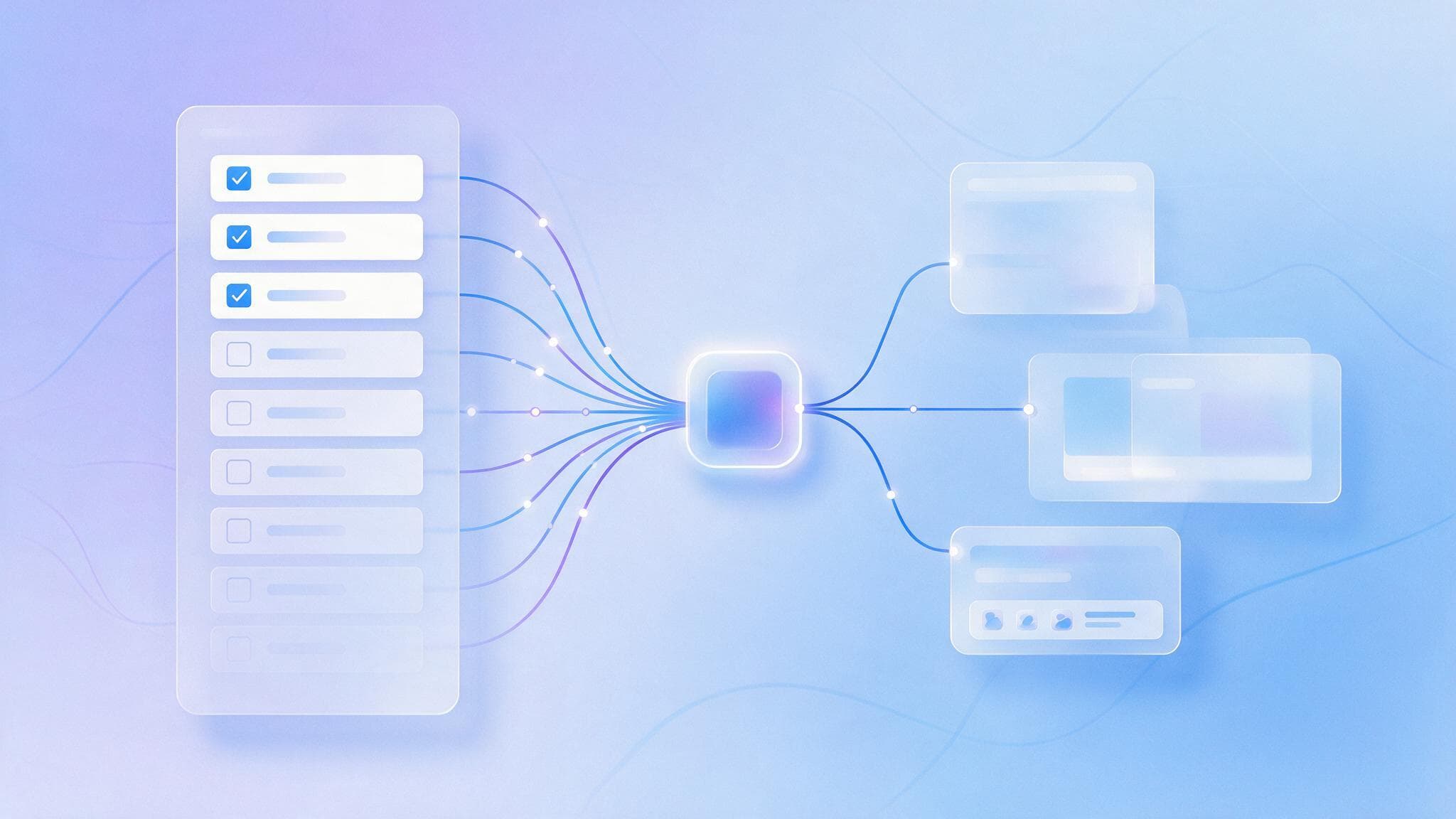
You can run Facebook live video ads in three ways: tap Boost post on your Page, create a live video ad in Meta Ads Manager, or create one from Live Producer, and you can do it while the broadcast is running or after it ends. If you want the ad delivering from the first minute of the stream, Meta recommends scheduling it in Ads Manager at least 3 hours before you go live.
This guide walks through each method as Meta Business Help Center describes it, how to choose a campaign objective, where the ad appears during and after the broadcast, the ad policy risks specific to live selling, which numbers to check afterwards, and how this differs from promoting a TikTok LIVE. Ads Manager menu labels change often and can look different from account to account, so treat the steps here as a guide and compare them with what you see on screen.
How many ways can you advertise a Facebook Live?
Meta calls the feature live video ads. The idea is that the Page's live post becomes the ad creative, so there is no separate video to edit. People who see the ad see the broadcast as it happens, with a Live icon on screen, and the ad can run much longer than a typical video ad because it lasts as long as the stream. These are your options for creating one.
Method 1: Boost post from your Page
This is the fastest route. Go to your Page, find the live video and click Boost post. The goal is set to Automatic by default, which lets the delivery system pick the most relevant goal. To choose one yourself, click Change and pick from the goals Meta lists: Get more messages, for people likely to message you on Facebook, WhatsApp or Instagram; Get more engagement, for reactions, comments and shares; Get more purchases through messaging, for people more likely to buy from you in chat; and Get more video views, for people likely to watch.
Then pick a call-to-action button, fill in the audience, schedule and duration, total budget and placements, turn on Meta Pixel if you use it, choose a payment method and click Publish. The main limitation is that the ad text comes from what you entered when you started the live video. To change it, you edit the post itself before clicking Boost post. And if you want a full campaign objective, Meta says to create the ad in Ads Manager instead.
Method 2: Create it in Meta Ads Manager during or after the broadcast
Meta's help page gives these steps. Go to Ads Manager, click + Create, choose an objective and select the manual campaign setup. Some objectives show a notice that you are starting with Advantage+ campaigns; click OK to move past it. Select Ad set budget, go to the ad set level, turn on Live video ad and choose your Conversion location and Performance goal.
In the Budget and schedule section, set a lifetime budget, select Current live video, and set the ad's start and end times to match the livestream as closely as possible. Choose who sees the ad under Audience controls, where Meta recommends going as broad as possible, and Meta also recommends Advantage+ placements.
At the ad level, choose the Page you broadcast from in the Identity section, choose Use existing post under Ad setup, then click Select post and pick the live video post. If the post does not show up, refresh the Page or enter the post ID from the live video's URL. Add a call-to-action button and complete any section your conversion location needs, such as a website URL or a chat template in Chat builder. After you click Publish and the ad is approved, Meta says it may take about 30 minutes for the video to start showing to your audience.
Method 3: Create it from Live Producer
Live Producer is Facebook's desktop tool for going live. Meta says you can create live video ads from it, and it is also the second half of scheduling an ad in advance, covered in the next section.
One point applies to every method. Meta notes that creating a live video ad during a broadcast is not available to all advertisers. If you do not have the option, you can still create the ad after the broadcast ends, and there are no eligibility requirements for that: anyone can use it once the live video is complete.
Which campaign objective should you choose?
For ads created during or after the broadcast, Meta says any objective works. For scheduled ads, the supported objectives are Awareness, Engagement, Traffic, Sales and App promotion. The conversion locations and performance goals you see depend on the objective you pick.
The right choice depends on where the live sale actually closes. If customers order by messaging you or typing CF in the comments, Engagement with message destinations as the conversion location sends people straight to chat. If the stream sends people to buy on a website that already has Meta Pixel installed, Sales with the website as the destination tells the system to find likely buyers. If the goal is brand awareness or more viewers, Awareness or Engagement with a viewing-related performance goal fits better.
A simple rule: have the system optimize for what you count as a real result. If you judge a stream by orders in chat but set the campaign up for views, the system will find people who like watching video, who are not necessarily the people who message to buy.
Can you set up the ad before the stream starts?
Yes, and Meta recommends it, because it shortens the wait for the ad's first impression. An ad created after the stream has started still has to pass review, which can eat into the opening part of the broadcast. Scheduling ahead means the ad is ready when the stream begins.
The conditions on Meta's help page are: schedule at least 3 hours before the livestream's start time in your local time, and ideally no more than 1-2 weeks in advance. The Page must be eligible to run live video ads, and the person setting it up needs Ads access to the Page.
The Ads Manager steps are similar to creating during a broadcast. The difference is that in Budget and schedule you select Upcoming live video instead of Current live video and set start and end times that match the stream. In the Ad creative section you can enter a title and video description. Clicking Publish sends the scheduled ad to review. Meta also says you can create more than one scheduled ad for a single live video, as long as each ad's start time falls within the duration of the stream.
After the Ads Manager part, you finish in Live Producer on a computer or mobile device to connect the broadcast to the scheduled ad. Meta states that scheduled live video ads do not work with Facebook live events or with live videos scheduled in Live Producer. If you use either of those, you need to change your setup or the link between the ad and the stream will not work.
One more point that often confuses people: Meta describes creating a live video ad from your Page as something you do after the broadcast starts. To prepare the ad in advance, schedule it in Ads Manager as above or, if your account is eligible, use Boost live video in Live Producer on mobile before you go live, which Meta says may take 30-45 minutes to start delivering.
What happens to the ad after the stream ends?
When the broadcast ends, the live post becomes a recorded video, and an ad created from it is a normal video ad using the replay. The important difference is placement. Meta says a live video ad created during a broadcast only appears on Facebook Feed and Facebook Reels. After the broadcast ends, the ad can appear in all ad placements, with the limit that the in-stream video placement only accepts videos between 5 and 15 seconds. Meta also notes that starting in March 2026, the Facebook Feed placement includes the Facebook Friends tab.
For a replay ad created in Ads Manager, the ad text comes from what you entered in Live Producer when you started the video, and you cannot change it in Ads Manager. If you choose Send message as the call-to-action after the broadcast ends, you also need to complete the message template.
In practice, live selling streams often run for an hour or more. Someone who sees a replay ad drops into the middle and may not know whether the offer still stands. If the live-only offer has ended, running the replay while it still talks about live prices can confuse customers. A safer option is to cut the best section of the stream into a new short video and run it as a standard video ad with copy that matches the current offer.
What kinds of live selling break the ad policies?
Live video ads go through review against Meta's Advertising Standards like any other ad. The difference is that the creative is happening live. What the host says and the products they show are the ad content, and there is no edit before it goes out. Something said off the cuff at minute 40 is part of the ad too.
Categories that need extra care in live selling include goods in Meta's restricted goods and services category, such as alcohol, tobacco and related products, weapons, drugs and pharmaceuticals, health and wellness products, and financial products; content that may deceive or mislead, such as guaranteeing results that cannot be proven; content that tries to make people feel bad about themselves to sell diet or health products; and statements that assert or imply personal attributes of viewers, such as telling viewers they have a health problem or money trouble, which Meta covers in its Privacy Violations and Personal Attributes policy. Thai law on advertising food, drugs, cosmetics and alcoholic drinks also applies, separately from Meta's policies, and needs checking for your product type.
Policy categories and details change. Before you run a live video ad, read the current Advertising Standards for the categories that match your products, and brief the host in advance on what not to say. A practical approach is to script the segments that sell higher-risk products and have the host stick to the script during those segments.
Which numbers should you check after a promoted stream?
The numbers to watch depend on the goal you set in the campaign. In Ads Manager, the basic columns that work for any campaign are Reach (people who saw the ad), Impressions (times it was shown), Results (outcomes for your performance goal) and Cost per result. Video metrics such as video plays are in the video column presets.
For a live sale that closes in chat, the numbers that show real performance are the conversations started from the ad and the orders closed from those conversations. Ads Manager cannot know the second number on its own; you count it from your back office or from the admins answering chats. For a stream that sells on a website, look at Purchases and purchase value reported back by the Pixel or Conversions API.
A hypothetical example to show the math: if one stream spends 2,000 baht on ads, gets 80 conversations from the ad and closes 20 orders, the cost per conversation is 25 baht and the cost per order is 100 baht. These figures are an illustration only, not a market average. What matters is collecting the same numbers for every stream and comparing them with your own profit per order.
Also keep ad viewers separate from total viewers. The stats on the Page's live video include viewers from followers, notifications and shares. Comparing that total with ad spend will overstate what the ad did.
How is this different from advertising a TikTok LIVE?
Both platforms let you buy ads that bring people into a live stream, but the back ends are very different. On Facebook you use Meta Ads Manager, the same tool as other Facebook and Instagram ads, with the same Pixel, and you can connect to Messenger or WhatsApp chat, which suits shops that already close sales in chat. TikTok uses TikTok Ads Manager and its own promotion tools, with their own menus, conditions and objectives. Settings do not carry over between the two.
Viewer behaviour differs too. On Facebook, a live video ad during the broadcast shows in Feed and Reels, so people meet the stream mixed in with posts from friends and Pages they follow. On TikTok, the stream sits in a fast-scrolling short-video feed. On both platforms the opening of the stream needs to say clearly what you are selling and at what price, because most people arriving from an ad did not watch from the start. For the details of TikTok's live ad conditions, check TikTok's own help center, since they change with the platform's updates.
Comparison of Facebook live video ad methods
| Method | When you can use it | Limits Meta states |
|---|---|---|
| Boost post from the Page | During or after the broadcast | Boost goals only; a campaign objective requires Ads Manager |
| Ads Manager, Current live video | During or after the broadcast | Creating during a broadcast is not open to every account; during the stream it shows only on Facebook Feed and Reels |
| Ads Manager, Upcoming live video | At least 3 hours before the stream | Needs Ads access to the Page; not compatible with live events or streams scheduled in Live Producer |
| Ad from the replay | After the broadcast ends | No eligibility requirement; all placements, but in-stream only takes 5-15 second videos |
Running live video ads in Thailand: what else to prepare
Many Thai shops close live sales by having customers type CF or a product code in the comments, then an admin follows up in chat. If you run live video ads on that model, the admin team has to keep up with the extra comments and chats during the stream, because the ad brings in new people who do not know how to order yet. Pin a comment explaining how to order, and have the host repeat the ordering steps regularly.
For timing, check Page insights for when your followers are online and line up the stream time with the ad schedule. Remember the 3-hour minimum for scheduled ads: for an 8 pm stream, the ad needs to be set up before 5 pm. For targeting, Meta recommends starting broad. Limiting to certain provinces makes sense if you only ship to some areas, but narrowing interests too far makes it harder for the system to find people in the short window of a stream.
If streaming is a regular sales channel for you, such as a weekly show, a helpful piece of back-end work is collecting people who watched or messaged during earlier streams and using them as a retargeting audience for the next one. That setup works alongside your account-wide Facebook ads campaigns and connects with live commerce work that covers everything from the stream script to closing orders.
FAQ about Facebook live video ads
Why can't I create an ad during my live broadcast?
Meta says creating a live video ad during a broadcast is not available to all advertisers. If you don't see the option, create the ad from the replay after the broadcast ends, which has no eligibility requirement, or try scheduling an Upcoming live video ad in advance if your Page is eligible for live video ads.
How far in advance should I schedule a live video ad?
At least 3 hours before the stream's start time in your local time, and Meta suggests no more than 1-2 weeks ahead. After setting it up in Ads Manager, you also need to connect the stream in Live Producer.
Where do live video ads appear?
During the broadcast, live video ads appear only on Facebook Feed and Facebook Reels. After the broadcast ends, ads from the replay can appear in all placements, but the in-stream video placement only takes videos of 5-15 seconds.
Can I edit the text of a live video ad?
Not in Ads Manager, because the text comes from what you entered when the stream started. If you boost from the Page, edit the post itself before clicking Boost post. For scheduled ads, you enter the title and video description in the Ad creative section when you create them.
How long does a live video ad take to start showing?
Meta says that once the ad is approved, it may take about 30 minutes for the video to appear to your audience. That is why Meta recommends scheduling the ad in advance rather than creating it after the stream starts.
If you want your next stream to have ads running from the first minute and results tracked down to the order, the Relevant Social Ads team can plan the live video campaign, set up measurement and connect it with your existing Facebook campaigns.