TL;DR
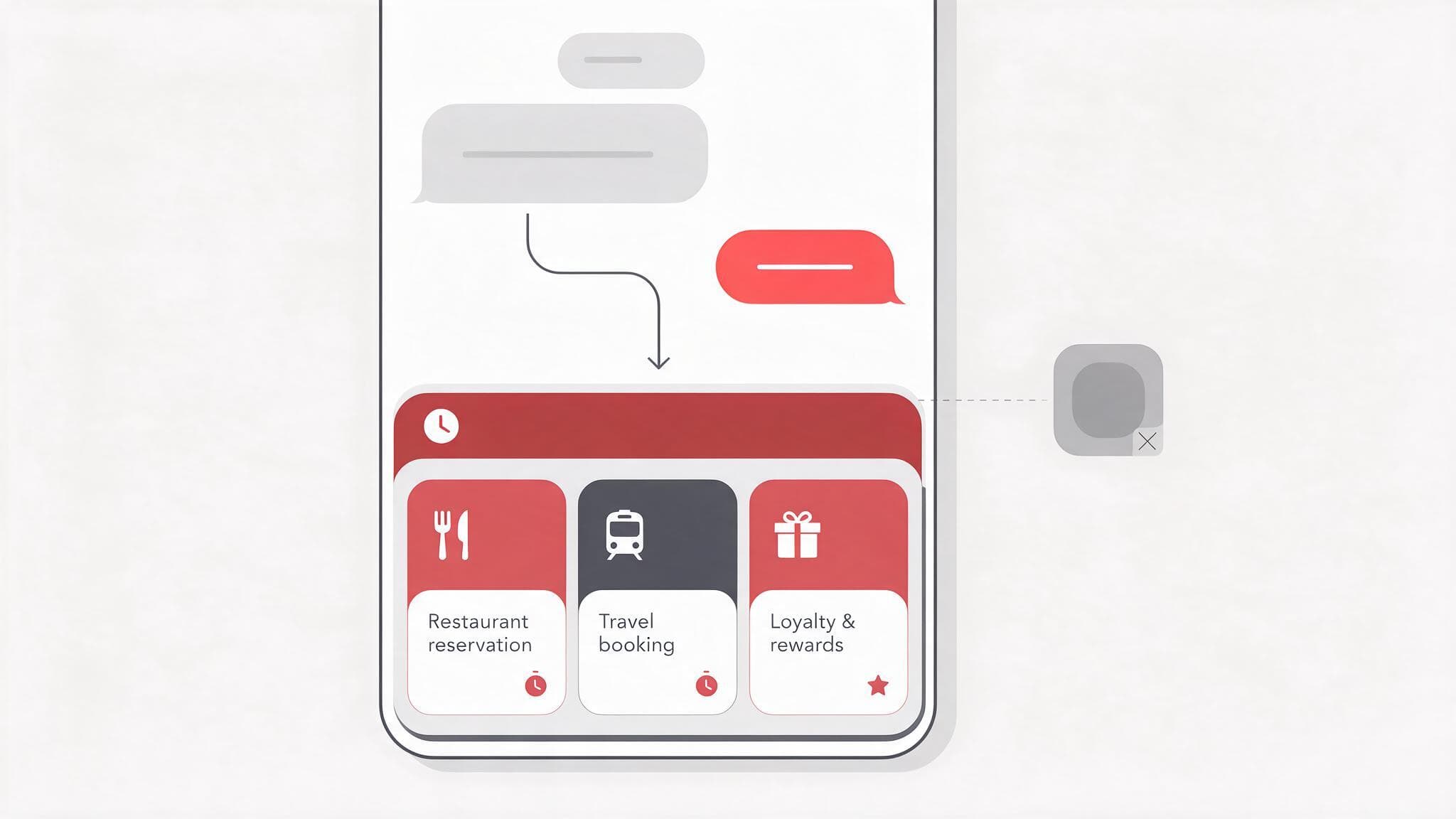
- A LINE MINI App is a web application that runs inside LINE, so people use the service without installing a separate native app.
- LIFF is the underlying web-app framework; a LINE MINI App is a LIFF-based web app with the MINI App channel type, review path and LINE UI shell on top.
- MINI Apps are unverified until they pass LINE's verification review; anyone can create an unverified one, but some features are restricted.
- Verification adds a verified badge plus features such as a device home screen shortcut, Custom Path and channel consent simplification.
- LINE's documentation does not state review turnaround times, costs or user numbers, so check the LINE Developers Console for your own project.
Plenty of businesses pay for a full app build, ship it, and only then discover that the harder problem was never the code. It was getting anyone to install the thing. LINE MINI App, which is the official name LINE uses in its own developer documentation, is one answer designed to skip that step entirely, because it is a web application that runs inside the LINE app, so people use the service without installing a separate native app.
This article covers what a LINE MINI App is according to LINE's own developer documentation, how it relates to LIFF, where it differs from a native app, an ordinary web app and a chatbot, which kinds of work suit it, how it sits alongside a CRM setup on LINE, and which questions deserve an answer before the first budget is approved. Numbers that cannot be verified do not appear here. Where you would want one, this article says where to go and find it instead.
The real problem is not building an app, it is getting people to install it
When an internal team pitches an app project, what gets presented is usually a set of attractive screens and a feature list. What rarely gets presented is the distance a single customer has to travel before any of those features are used. The person has to hear about the app, remember its name, open a store, agree to give up storage, wait for a download, register, verify themselves, and only then reach the first screen of the actual service. Every one of those steps is a door some people walk back out of.
What makes it worse is that all of it happens before the customer receives any value at all. Somebody standing in a queue, somebody who needs a service booking in ten minutes, somebody who just saw a promotion on a mall sign, is not in the mood to install a new app in exchange for a one-time discount. The money spent on development turns into money that has to keep being spent on buying installs, and when the buying stops, new users stop with it.
The second barrier is coming back. An installed app is not an opened app. One icon on a phone screen competes with every other icon on that phone, and a brand app for a service somebody uses once a month has almost no reason to be opened on the other twenty nine days. In the end it gets deleted when storage runs out.
So the question worth asking before a project starts is not "what features should our app have" but "where should our service sit, given where the customer already is". That question is where the mini app idea comes from: put the service inside an app people already open every day, instead of asking them to open new space for you.
What a LINE MINI App is
According to LINE's own developer documentation, a LINE MINI App is a web application that runs inside LINE, so users can use the service without installing a separate native app. The official name LINE uses is LINE MINI App, and that is the term to search with when you go looking for reference material, because other names circulating in the market usually refer to something else.
Because it runs in a LINE in-app browser, most HTML5 specifications can be used. The practical consequence is that an existing web team does not start from zero. What the team already knows about pages, forms, state handling and API calls still applies, which is a different situation from starting a native project that requires adding a new discipline to the team.
A LINE MINI App page consists of a header and a body. The header belongs to LINE and carries the information LINE shows about the app itself. The body is the area a team designs in full. Knowing early which area you do not control saves a redesign near the end of the project.
Users can reach a LINE MINI App both from inside LINE and from outside LINE, which matters directly for media planning, because it means the same destination can be referenced from channels that do not live inside the LINE app. Development and configuration are done through a LINE Developers Console account, and both the configuration and the submission for review happen there.
Built-in features include sharing the MINI App with other users and requesting user access to services. Custom features that can be added include Service Messages, payment systems and a custom action button. That distinction matters when you write a scope of work, because what comes built in and what has to be built are two different lines on a quotation.
Unverified and verified LINE MINI App status
LINE splits MINI Apps into unverified and verified, depending on whether they have passed LINE's verification review. A newly created MINI App channel is unverified until it passes. Anyone can create an unverified MINI App, but some features are restricted. The table below summarises the differences set out in LINE's documentation.
| Aspect | Unverified | Verified |
|---|---|---|
| Creation | Anyone can create one, but some features are restricted | Has to pass LINE's verification review |
| What the header shows | The title and the domain name of the endpoint URL | The title and the LINE MINI App name |
| Verification mark | None | Gets a verified badge |
| Features unlocked | None listed | Adding a shortcut to the device home screen, Custom Path and channel consent simplification |
The line people usually skip is the header. An unverified MINI App shows the domain name of the endpoint URL to the user, while a verified one shows the LINE MINI App name instead. That is a difference customers see with their own eyes every time they open the service, and it is why a brand that cares about how it presents itself should plan the review path from the start rather than treat it as a launch-week item. Verification also unlocks features such as adding a shortcut to the device home screen, which puts the service back on the phone screen without going anywhere near a store.
What to avoid is taking unsourced numbers into a management meeting. The documentation referenced in this article does not state how many days the review takes, does not state a cost, and does not state a pass or fail rate. Anyone who quotes those figures casually should be asked for a source first. The more direct route is to check the conditions in the console for the actual project and ask LINE's own support channel.
The difference between LIFF and LINE MINI App
This question confuses a lot of teams, because the two terms get used interchangeably in conversation. The most precise answer the documentation supports is this: LIFF stands for LINE Front-end Framework and is the underlying web-app framework, while a LINE MINI App is a LIFF-based web app with the MINI App channel type, the review path and LINE's UI shell layered on top.
A way to hold it in a meeting room: LIFF answers "how does our web app talk to LINE", and LINE MINI App answers "what does our service appear as to a user inside LINE". The first is a developer tooling matter, the second is a product-shape matter that users actually touch. Technical and marketing teams often argue about different layers without noticing.
In practice this means a development team's existing LIFF experience is not wasted when the work moves to a MINI App, because the foundation is the same thing. What gets added is the process around the code: choosing the right channel type, preparing what the review needs, and accepting that the header area belongs to LINE and not to you.
Do not explain it beyond that in a client deck. Detail below this level, such as per-feature restrictions or the ordering of approval steps, is the kind of thing that changes with the documentation version. The safer habit is to open LINE's developer documentation on the day the scope is written and reference it per project.
Four options compared: native app, web app, chatbot and LINE MINI App
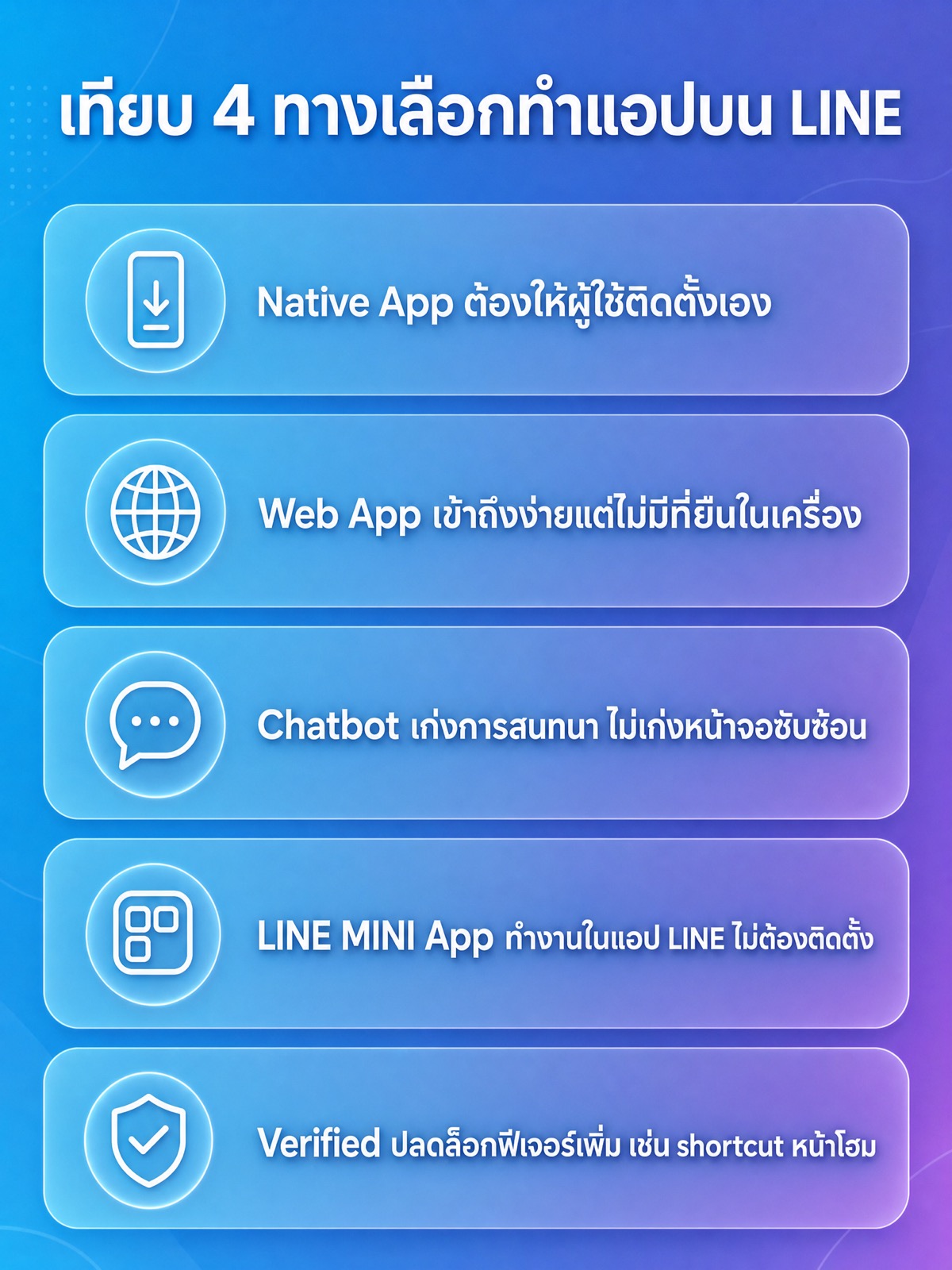
When the brief is "we want our own digital channel", there are usually four options on the table. The table below compares all four on characteristics you can actually decide with, rather than on scores somebody invented, across five criteria: development effort, distribution, notification, retention and back-end integration.
| Criterion | Native app | Web app | Chatbot | LINE MINI App |
|---|---|---|---|---|
| Development effort | Highest, maintained separately per operating system | Moderate, uses existing web skills | Low to moderate, centred on conversation design | Moderate, uses existing web skills on the LIFF foundation |
| Distribution | Through a store, the user has to install it | Opens straight from a link | Lives in the chat room of an official account | Opens both from inside LINE and from outside LINE |
| Notification | Operating system push, the user has to allow it | Limited, depends on the browser and permission | Messages from an official account under the provider's conditions | Service Messages can be added as a custom feature |
| Retention | Has an icon on the device, but competes with every app | Needs a link to bring the user back each time | Sits in the chat list the user opens often | Sits inside an app the user already opens, and can add a home screen shortcut once verified |
| Back-end integration | Full API integration | Full API integration | Suits work that finishes inside a conversation | Web-style API integration, with payment systems available as a custom feature |
Reading the table row by row makes the reasoning behind each option clearer. On development effort, a native app costs the most because the code is maintained separately per operating system and every update goes through a store process. The other three sit on a web foundation, so they use the existing team and ship more often.
Distribution is where the four diverge most. A native app has to be installed by the user, and that is the barrier that strands a large share of projects. A web app is easy to reach but has no standing place on the device, so the user needs a link every time they want to come back, and that link disappears into browsing history. A LINE MINI App runs inside the LINE app with no install, which removes the store step completely.
Notification deserves care, because the easy comparison is misleading. A native app can send operating system push messages, true, but only after the user allows it, and that permission is another barrier of its own. On the LINE MINI App side, Service Messages is a feature that can be added, and the conditions attached to it are something to check against LINE's documentation on the day you plan, not something to assume.
Retention is a matter of position more than anything else. A service that lives inside an app the user already opens has a lower cost of return than a service that requires opening a new app. And once a MINI App has passed review, adding a shortcut to the device home screen becomes available, which brings the on-screen icon back without a store.
A chatbot should be treated as a different tool, not a lesser one. Conversation is what a bot is good at, and complex screens are what it is bad at. Repeat questions, screening before a handover to staff, status updates: all of that fits a conversation better than a screen. But once the job becomes picking a seat, a branch and a time and paying in one flow, a screen does the work better than a back-and-forth. Teams that get good results tend to run both, with the bot as the entry point and the MINI App as the place where the job finishes.
Common use-case categories for a LINE MINI App in business
The list below describes categories of use, not references to any particular brand. What they share is being work customers do often enough to want a screen for, and not often enough to justify installing a separate app.
Membership and loyalty points. This is the category that runs hardest into the limits of a native app, because points are collected at the counter, which is exactly when nobody wants to wait for a download. The pattern is a screen showing the membership card, the remaining points and a history of redemptions. A restaurant chain might use this shape as an illustrative pattern, with staff scanning from the same screen the customer already has open.
Booking and appointments. This suits service businesses where the customer picks a branch, a staff member and a time slot. That work needs a calendar and visible options side by side, which a conversation handles awkwardly. A clinic or a service shop might use this shape by letting the official account handle the reminders and the screen handle the booking.
Food and product ordering. This category needs a product list, variant options and a cart, all of which are web pages by nature. Adding a payment system as a custom feature lets the flow finish in one place without sending the user somewhere else.
Passes and event tickets. This shape benefits most from the user installing nothing at all. Somebody attending a one-off event has no reason to install an app for it, but every reason to open a screen showing their own entry code.
Insurance quotes. This is work with several layers of input and conditions stacked on each other. A form split into steps works better than asking one line at a time, and what gets entered can then be handed to a sales team to continue.
Real estate. This follows the same shape as filtered search. A prospect picks a location, a price range and a unit type, then books a viewing from the same screen. The work needs a lot of images, which is a job for a web page rather than a chat room.
Internal HR tasks. This category gets overlooked. Clocking in, filing leave and checking a payslip are things staff do a few times a month, so it is hard for an organisation to get everyone to install an internal app and remember a password for it. Putting the task inside an app staff already use reduces that friction.
Education and training. This covers enrolment, attendance and timetables. Parents and learners usually want to see the same information from different angles, which can be handled with access rights on a single screen.
What is worth noticing is that all of the categories above share a shape: defined steps, data that has to be pulled from a back-end system, and a moment when the customer has no time to wait. If your brief has none of those characteristics, a mini app may not be the answer, and a well configured LINE official account may be enough for this year.
How a LINE MINI App works alongside a LINE CRM setup
The least discussed benefit of a mini app is that it is where behavioural data gets created with structure. Chat produces text; a screen produces events, such as which page was opened, which branch was picked, which time was booked and whether the flow was completed. That set of data is raw material a CRM can act on, unlike a chat history that has to be read one thread at a time.
So the system design should start with a question about which key joins the records. If the same customer shows up in the old membership system, in the official account and in the mini app, the team has to agree on the identifier used to join them and on who owns that data. Deciding this at design time costs a fraction of fixing it later.
The built-in feature for requesting user access to services is where consent happens. The wording a user sees should match what the data will actually be used for, and there should be a record of when a user consented and to which version of that wording, which is what a legal team will ask about as the system grows.
Once the data flows in, the next job is making it act. That is the work of a CRM setup on LINE that segments people by what they actually did and sends messages matching what they just did. Bringing new people to that screen in the first place is a media job, and advertising on the LINE platform is one of the routes that can bring them in without leaving the app.
The other side to plan for is how the screen looks and feels, because the content area belongs to the team, and users judge credibility in the first few seconds. That design work follows the same principles as website design: information priority, loading speed and clarity of the next button, rather than the number of effects on the page.
A five-item checklist before deciding to build one
Before the budget is approved, answer these five in writing. Any one you cannot answer is a risk to deal with first, ahead of designing the first screen.
- Which task do customers repeat? Write that task out as a single sentence: book a technician, check points, renew a policy. If it cannot be written in one sentence, the scope is still too wide for a first version.
- How do customers do that task today? If it currently finishes with a chat to an admin, measure how many cases arrive per week and how long each takes first. That number comes from the systems already in use, without waiting for anyone else's survey, and it becomes the baseline after launch.
- Is the back end ready to connect? A mini app is a screen, not a database. If loyalty points still live in a spreadsheet or the technician queue is still written in a notebook, the real work is the back-end work, and it should be sequenced first.
- Who looks after it after launch? Name the content owner, the technical maintainer and the person who decides when a complaint comes in, along with the annual maintenance budget. Projects with no owner after launch day usually go quiet within a few months.
- How will it be measured? Pick a metric tied directly to the task in item one, such as the share of bookings that complete without human help, or the number of cases an admin has to step into. Set the measurement up before launch, because the first week of data cannot be collected retroactively.
These five also work as a test of how small the project should start. Teams that can answer all five usually start with one task and ship quickly. Teams that can answer two usually start with a page-long feature list and spend months getting to their first real user.
What Thai marketers should weigh up
For the Thai market, the point to weigh is that a channel customers already open always costs less than a channel that requires building a new habit. That is a general principle, not something LINE's documentation says about Thailand specifically. The decision should rest on your own business data, such as the share of customers who already contact you by chat and the type of question that repeats most.
The thing to watch out for is replacing something that still works. If the current official account already closes sales, adding a screen may not add revenue, only maintenance work. A more reasonable route is to find the point where people pile up in the current process and put a screen at that one point first.
Finally, be careful with numbers that drift into a quotation, whether that is a user count, a return rate or a review turnaround time. If there is no source, keep it out of the plan. What can be done instead is to define your own measurement method up front and measure your own users in the first month.
FAQ about LINE MINI App
What is the shortest way to say how LINE MINI App differs from LIFF?
LIFF is the underlying web-app framework, and a LINE MINI App is a LIFF-based web app with the MINI App channel type, review path and LINE UI shell added on top. Put another way, LIFF is a tooling matter and a MINI App is a matter of the shape the user sees.
Does it have to pass LINE's review before I can start building?
No, because anyone can create an unverified MINI App, though some features are restricted and the header shows the title and the domain name of the endpoint URL instead of the LINE MINI App name. Once it passes the review it gets a verified badge, along with features such as adding a shortcut to the device home screen and Custom Path.
Can users open a LINE MINI App from outside the LINE app?
Yes, the documentation states that users can reach a LINE MINI App both from inside LINE and from outside LINE, which matters for media planning because the same destination can be referenced from other channels. How each channel renders it is worth checking against LINE's documentation on the day the work is done.
If I build a LINE MINI App, do I have to stop using my LINE official account?
No, because the two do different jobs: an official account is a channel for conversation and messaging, while a mini app is a screen where a user completes a task with steps. The documentation referenced here describes a MINI App as a web application running inside LINE and does not state that it replaces an official account.
How long does the review take and what does it cost?
The documentation referenced in this article does not state a review duration and does not state a cost. The correct route is to check the current conditions in the LINE Developers Console for your own project and ask LINE's support channel directly. Do not put unsourced figures into a budget plan.
In closing
A LINE MINI App does not solve everything, but it does solve the most expensive problem most app projects have, which is getting anyone to start using the thing. If your task fits the checklist above, the next step is to write the smallest first version that is still useful and measure it against real users. If you want a team to help assess feasibility and lay out the system, see the details of our LINE MINI App development services on the service page.